Set up protection through the visual WooCommerce admin panel. Choose conditions, check the live rule preview and save when you are ready. This guide explains each setting with practical examples.
Your first setup, step by step
Confirm your purchase or trial, set your account password and download the private installer.
Install it in WooCommerce, connect your account and verify your store domain.
Choose coverage and a history action. Save, then confirm that the new settings were accepted.
Add the fees, advance payments or email verification that fit your store. The same settings apply to Classic and Checkout Blocks.
After your purchase or trial is confirmed, set your password using the activation email. Sign in, download the private WooCommerce installer and connect your store to your account. Complete domain ownership verification. Only WooCommerce is supported today; the installer is not public.
At first setup, the plugin detects saved FREE or PRO settings and offers “Import my settings”. Review the draft, including restrictions, fees and advance payments, then save. The Import settings tab lets you try again after discarding or completing an import. New Smart COD AI features retain their current defaults. Your previous settings and orders are preserved.
Open the Smart COD AI settings in WooCommerce. Protection settings are saved on our server separately for each connected store. Save your changes and check the confirmation. If another administrator has changed the settings, reload the latest version before saving again.
Default: your store + network. Choose local only to evaluate your own store, or local + network to include eligible history from other stores in the same country network. This setting does not erase history.
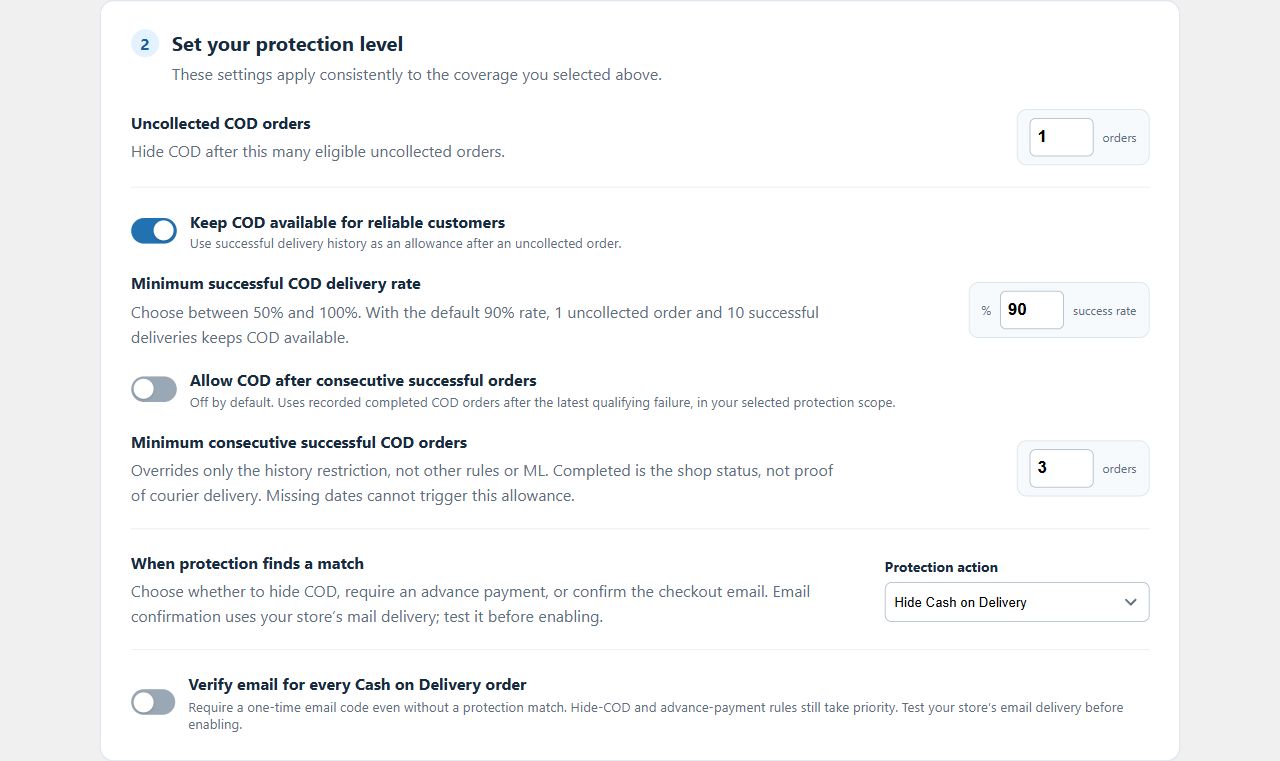
Default: 1; minimum: 1. Protection applies when eligible failures reach this number. Cancelled does not automatically mean uncollected. Collecting an order event is not the same as counting it negatively. For new physical COD cancellations, dispatch evidence may qualify (tracking, a previous completion or a shipped/fulfilled status). Without dispatch evidence, the fallback requires no tracking integration, at least 24 hours from creation to cancellation and a previous processing/completed/shipped/fulfilled status (including partial shipment/fulfilment). The time rule is an eligibility fallback, not proof of courier non-delivery. A quick cancellation alone is not a negative finding.
Default: on. A sufficient success rate can override a history-based restriction. It does not override checkout restriction rules or an active ML decision.
Default: 90%; range: 50–100%. At 90%, 9 successful and 1 qualifying failed order satisfy this override. At 100%, it cannot override a qualifying failure. Pending orders do not count. WooCommerce completion is a recorded outcome, not independent proof of courier delivery.
Default: off. Enables a separate history override for known successful physical COD orders after the most recent qualifying failure. It does not override other checkout rules or ML.
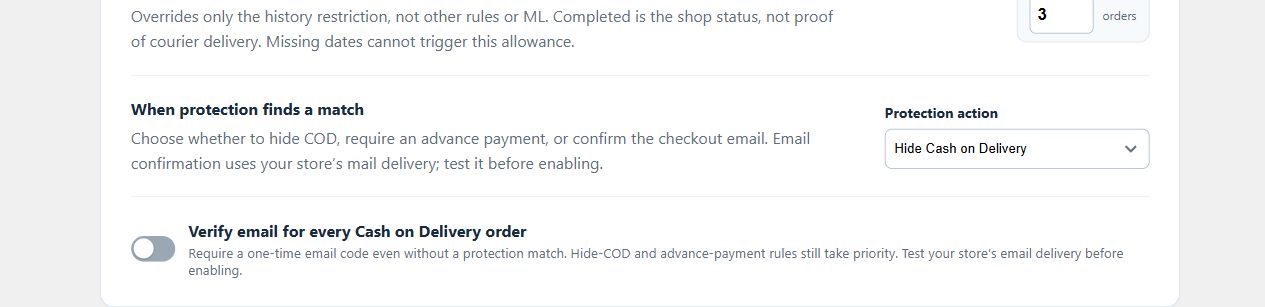
Default: 3; range: 1–1000. Example: a qualifying failure followed by 3 known completions meets a threshold of 3. A newer qualifying failure resets the run. Unknown failure dates cannot qualify for this override. If both history overrides qualify, the success-rate override is recorded as applied.
Default: hide COD. Alternatives: require a deposit or verify email. Deposits require advance payments to be enabled and an allowed online payment method. A checkout hide rule takes priority; a success override does not remove it.
The UI suggests 10%; this does not enable a deposit by itself. Choose a fixed amount or percentage of the final order total. This amount is separate from the ML deposit. For a €100 total, 10% means €10 online and €90 on delivery.
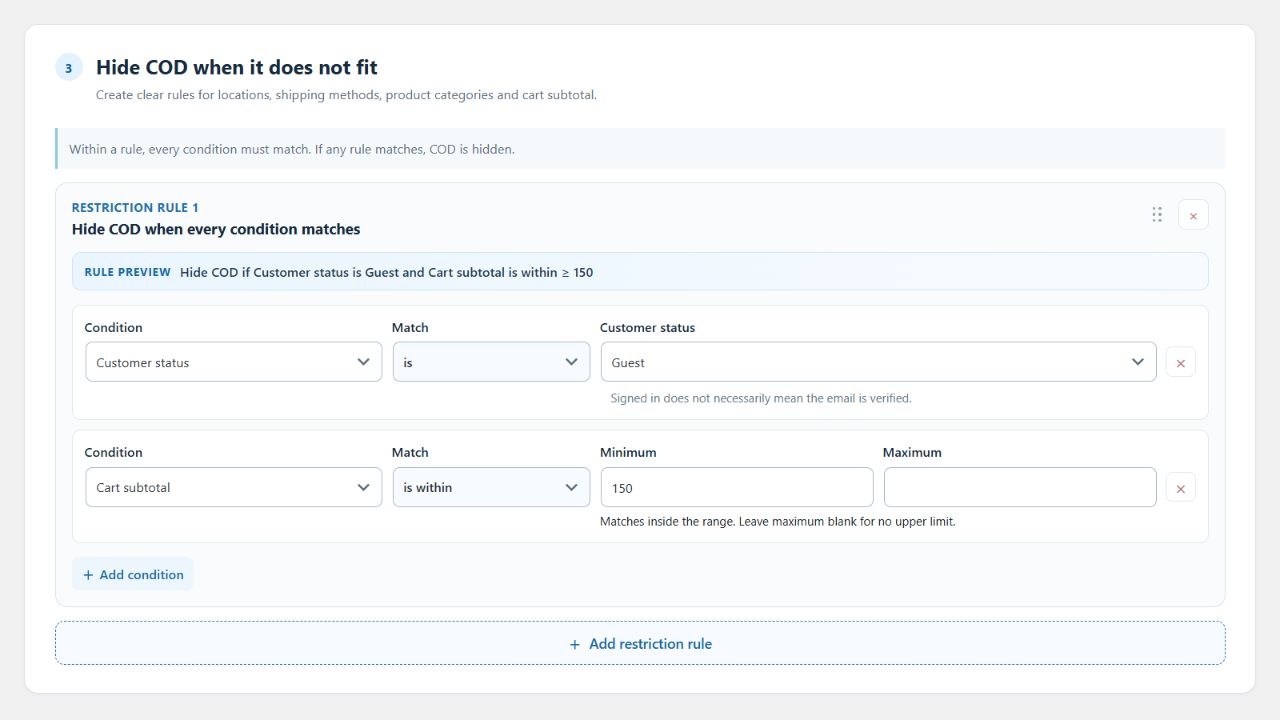
Add at least one condition to each hide rule. A matching rule hides COD regardless of positive history. Example: hide COD for guest customers with a cart subtotal above your chosen limit.
Example settings in English: hide COD for guest carts of €150 or more. The preview updates as you edit; changes apply only after saving. Open full screenshot
There are 30 conditions covering destination and shipping, customer accounts, products and vendors, coupons, amounts, quantities, weight, stock, invoice requests and backorders. All conditions in one rule must match (AND). Use separate rules for alternatives. The next section explains every field and the available matching options, with examples.
There are independent lists for restrictions, fees and deposits. Only the first matching rule in each list applies; amounts are not added together. Place specific rules before general rules. An unconditional fee or deposit rule should come last. Limits: 100 rules per list and 20 conditions per rule.
The same condition editor is used for COD restrictions, fees and advance payments. Choose the field, then an available Match option and values. “is” matches one of the selected values; “is not” excludes them. For product lists and coupons, “contains any” requires at least one selected value; “contains none” requires none. These compare complete values, not fragments of text. Every condition in one rule must match; create separate rules for alternatives.
“every cart item matches” requires each cart line to match a selected product, category, shipping class, SKU or vendor. Quantity two is still one line. With products A and B in the cart and only A selected, “contains any” matches but “every cart item matches” does not. “not every cart item matches” requires an unmatched line. For coupons and vendors, “all applied values are selected” means no applied value lies outside your list; it does not require every selected value to be present. An empty applied list does not satisfy this last option or its opposite.
Minimum and maximum are inclusive. Leave one empty for an open range; zero is a real value. For example, minimum quantity 3 matches quantities 3 and above. “is not within” means below the minimum or above the maximum. With each-product weight or stock, “is within” requires every measured line to be inside the range, while a known outside line proves “is not within”. Weight uses your WooCommerce weight unit. Unmanaged stock is unknown, not zero; measured stock may be negative.
Unavailable data does not turn a negative condition into a match. A known absence, such as no applied coupon, differs from data that could not be read. Enter text values one per line. City matching ignores case in every country, but does not remove accents or translate names. Phone matching does not guess country codes. Postcodes, cities, account IDs, email, phone, coupons and SKUs stay on WordPress; only store-specific keyed tokens are sent for server evaluation. If their local copy is missing, re-enter the values before saving.
The restriction and fee previews update when you change a field, value or Match option. They describe your draft; they do not save or activate it. Review imported PRO conditions, save COD protection and check the confirmation. Test both a matching and a nonmatching cart, including the exact boundary, then inspect the decision audit. The server evaluates the saved store policy; unsaved changes do not affect checkout.
Destination & shipping
Delivery country
Select the shipping destination countries. Billing country is used only when no shipping country exists. This works for every supported WooCommerce country.
Shipping method
Choose the exact shipping rate. Two instances of the same method can be different choices. A cart without a selected shipping rate does not match a shipping-method condition.
Shipping zone
Matches the destination zone selected by WooCommerce, including Rest of the world. It follows your store’s zone configuration, not a hard-coded country list.
Shipping zone and method
Select a method within a specific zone. Use this when a method such as Flat rate exists in several zones and only one should trigger the rule.
Delivery state / region
Choose the region together with its country. Regions with similar codes in different countries are distinct. An unavailable region does not count as a match or an exclusion.
Delivery postcode
Enter exact postcodes, one per line. Leading zeros are preserved. Numeric intervals such as 55133...55600 include both ends; for alphanumeric postcodes use exact values, without wildcards.
Delivery city
Enter city names one per line, in the spelling customers use. Matching ignores letter case across countries and scripts. Málaga differs from Malaga; it is not a fuzzy search or transliteration.
Customer & account
Customer type
Distinguishes guest customers from customers currently signed in to WordPress. Entering an email that belongs to an account does not make a guest signed in.
Customer role
Select WordPress roles, for example Customer or Wholesale customer, or Guest. A signed-in user may have multiple roles; matching one selected role is sufficient.
Customer account
Select specific WordPress customer accounts. This identifies the signed-in account, not every shopper with the same billing email. A guest has no customer account.
Customer email
Enter complete billing email addresses, one per line. Matching trims surrounding spaces and compares the exact value; it does not match domains, substrings or email aliases automatically.
Customer phone
Enter complete billing phone values, one per line. Surrounding spaces are trimmed. +306900000001 and 6900000001 are different values; add the forms you intend to match.
Products & marketplace vendors
Product or variation
Select products or specific variations. A selected parent product includes its variations; selecting one variation matches only that variation. Use the Match selector for any or every cart line.
Product category
Matches the product’s assigned categories. Variations use their parent product’s categories. Choose whether any, none or every cart line must match the selected categories.
Shipping class
Matches the product’s shipping class, including a variation’s inherited class. A product without that class does not match it. Every-item matching checks all cart lines.
Product SKU
Enter exact SKUs, one per line. A variation can match its own SKU or the parent SKU. Use any/every-item matching to distinguish a mixed cart from one consisting entirely of matching lines.
WCFM vendor
Select vendor accounts for products assigned through WCFM. Requires the relevant marketplace integration to provide vendor data. Missing vendor data does not mean the cart has no selected vendor.
Dokan vendor
Select vendor accounts associated with products in Dokan. Variations follow the parent product’s vendor. Use any, every or selected-value matching according to whether mixed-vendor carts should qualify.
Amounts, quantities, weight & stock
Cart subtotal
The product amount after coupon discounts, excluding tax, shipping and fees. A minimum of 150 includes exactly €150 in an EUR store. This is not the final amount payable.
Total cart quantity
Adds the quantities of all cart lines. Two units of one product and one of another give quantity 3, even though the cart has only two lines.
Total cart weight
Adds physical product weight multiplied by quantity, in your store’s weight unit. A physical item with unknown weight makes the total unavailable; virtual products contribute no shipping weight.
Each product weight
Checks each cart line’s product weight without multiplying by quantity. Use “is within” when every product must be inside the range, or “is not within” when a measured product lies outside it.
Each product stock quantity
Checks measured stock for each product, using parent stock when the parent manages a variation. Cart quantity does not multiply this number. Zero and negative stock are valid; unmanaged stock is unknown.
Cart amount before tax and shipping
Discounted product amount without tax, shipping or fees. Example: €100 of products after discounts gives 100. Coupon discounts change this amount.
Cart amount including tax
Discounted products plus product tax, excluding shipping and fees. Example: €100 of products with €24 product tax gives 124, regardless of shipping charges.
Cart amount including shipping
Discounted products plus shipping before tax. Example: €100 of products and €5 net shipping gives 105. Product tax, shipping tax and fees are excluded.
Enter coupon codes, one per line. Matching follows WooCommerce’s coupon formatting. For selected codes A and B, a cart with only A satisfies “all applied values are selected”; A and C does not.
Invoice requested
Checks the supported invoice selector: billing_invoice in Classic or the registered webexpert/billing_invoice field in Blocks. An explicit invoice request means Yes; without one it is No. Entering a company name alone does not count as an invoice request.
Cart contains a backorder
Yes means at least one cart line is actually on backorder for the requested quantity. Merely allowing backorders in product settings is not enough. One confirmed backorder establishes Yes.
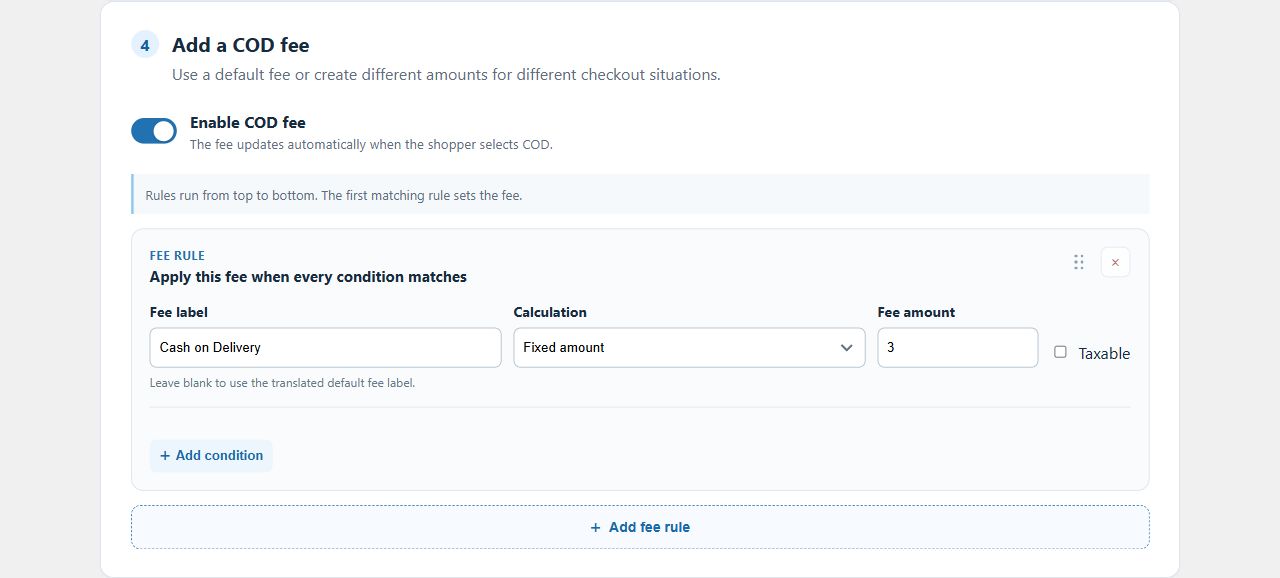
Default: off. Enable fees and add a matching fee rule. The fee applies only when COD is selected and available; changing payment method or making COD unavailable removes it.
Choose conditions and an amount for each rule. An empty condition list applies generally. Example: a €3 fixed fee for a selected shipping method, followed by a €2 general fee. Only one fee applies.
Percentage fees use the cart subtotal, not the final order total. Example: 2% of a €100 subtotal is €2 before any fee tax. Positive amounts allow up to four decimal places; checkout rounds to the store’s currency precision.
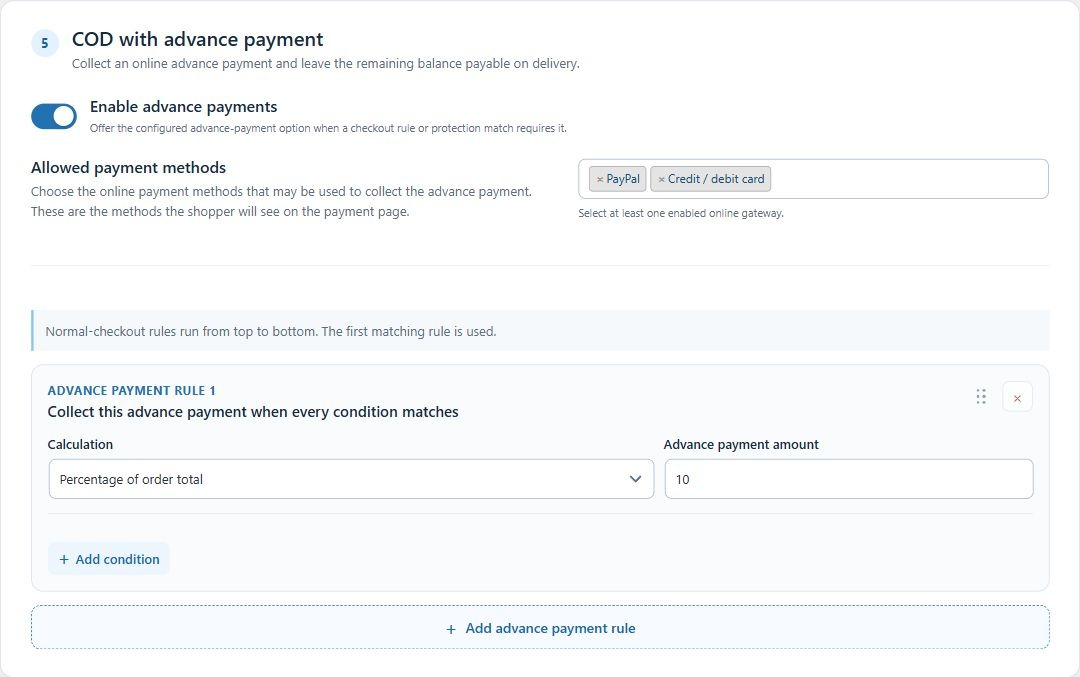
Default: off. Enable this before selecting a deposit action for history or ML, or adding deposit rules. It does not make every COD order require a deposit: a relevant rule or decision must match.
Select at least one active online gateway. COD and Smart COD’s internal payment methods cannot collect the advance payment. The customer pays the deposit online and the remainder on delivery.
A history-based deposit takes priority over an ML deposit, which takes priority over a general matching deposit rule. Only the first matching general deposit rule applies.
Use a fixed amount or percentage of the final order total, not the cart subtotal. It must be positive and less than the entire order; percentage must be below 100%. If the amount is invalid for this order, COD is unavailable. Example: 10% of €120 is €12 online and €108 on delivery.
Default: off. Requires a one-time code even without a history match. Codes are sent through your store’s email service. A hide or deposit decision takes priority. The same protection applies to Classic and Checkout Blocks.
Default: none. Choose none, hide COD, advance payment or email verification. The selected action applies when an available ML score meets your threshold. Without a score, no ML action applies. History protection and other rules remain separate.
Default: 80/100; range: 1–100. When an ML score is available, the chosen action applies if risk meets or exceeds this threshold. Higher scores mean higher risk, not confidence or prediction accuracy.
Separate from the history deposit. The UI suggests 10%. It is used only when the ML action is deposit and an active model qualifies. Advance payments and allowed online methods must be configured.
Available in your account and WooCommerce → Smart COD AI audit, 25 entries per page. Shows the original decision, settings revision, local/network checks, history overrides and the recorded ML status/score/factors when available. “Satisfied” is not the same as “applied”: another rule can take priority. Local-only means the network was not evaluated, not a negative result. Audit entries are not recalculated after settings change.
When a checkout decision leads to a created order, its decision ID is included in the order’s lifecycle event and sent through the existing retryable outbox. The audit links to the WooCommerce order. Checks that did not create an order remain unlinked. A link does not prove payment or delivery. Paid audit has no automatic expiry; data-deletion procedures still apply.
The same protection rules apply to Classic and Checkout Blocks. Fees follow the selected payment and shipping method. Advance payments show the online amount and the remaining COD balance. Email verification follows the checkout email.
Sign in to open a conversation with support. Include reproduction steps, plugin versions and a decision ID if useful. You can attach screenshots or logs, read replies and respond in the same portal. Email is used for notifications. Files are private and expire after 90 days. Never upload credentials, card details or customer personal data.
 smartcod